Archive | January, 2017

NHS Patient Waiting Times, Part 2: Weighting the Formulas

30 Jan

A certain type of spreadsheet bliss attaches to relative ignorance. Know just one formulaic way around a task, and your decision rule requires no deciding: write the formula.

But know at least a couple of ways to get where you want to go, and you’ll need to break out the map and plot your best-course scenario, or at least try to. Last week’s post described one means, driven in part by a teaming of the OFFSET and CELL functions, for totalling the number of patients having to wait up to a specified number of weeks for treatment in an identified medical speciality, those data emanating from the National Health Service spreadsheet upon which we drew in the post. But alternative means toward that end are available; and why you’d make use of this as opposed to that one stands as a good question, the answer to which has a lot to do with the confidence you can marshal toward the approach. Find one formula among the options the easiest to write and you’ll likely be magnetized in that direction – even if in some absolute, textbook-ish sense, some other formula comes best in show for elegance.

In any case we can, in the interests of informed choice-making, review two other formula possibilities, braced by the corollary concession that still others may be camouflaged in the brush. Remember we’re interested in learning the number of patients in a medical speciality who waited a maximum, stated number of weeks for treatment (we’re continuing to address the workbook introduced last week). We can begin to put our second option into play by retaining the dropdown menu of medical specialities in E1 (founded on cells F4:F22) we forged last week (look here for a precis of dropdown menu construction, if you’re new to the idea. You don’t really need to name the range, though, in spite of the linked discussion’s advisory – at least not in our case, as its contents won’t be augmented). Then enter a week-waited number in D2, say 12, and for illustration’s sake select ENT from the speciality dropdown in E1:

wait2

Thus we’ve declared in interest in discovering the number of individuals who had to wait up to 12 before receiving ENT treatment. Then, enter this expression, say in H1:

=SUMPRODUCT((F4:F22=E1)*(COLUMN(G3:BG3)<=D2+6),G4:BG22)

This formula likewise calls for an exposition, needless to say. SUMPRODUCT, Excel’s quintessential off-the-shelf array formula, is perhaps the deepest of the application’s functions, its diffident, user-familiar tip (i.e., it multiplies pairs of values and proceeds to add them all) transmitting the weakest of signals about the iceberg immured beneath.

Here, SUMPRODUCT combs F4:F22 for the medical speciality – ENT – we ticked in E1.  And you’ll observe that the search and find for ENT is pressed without any syntactical resort to the standard, conditional IF; that word is nowhere to be found in the formula. When it finds ENT – in F7 – the formula moves to examine row 7 for the values running across its contiguous, number-bearing cells, in columns G through BG (note too that the F4:F22=E1 phrase is couched in parentheses).

And that sweep through the columns takes us to the *(COLUMN(G3:B3)<=D2+6) piece of the formula. The star/asterisk reminds us that SUMPRODUCT continues to do what it’s been programmed to do –  assign a value of 1 to its successful sighting of the requested medical speciality ENT (a sighting that first imputes the name TRUE to the finding in F7 – and in the Boolean language of array formulas, TRUE is next quantified into a 1). In turn, the other non-complying entries in F4:F22 are deemed FALSE, and incur a 0 as a result. COLUMN identifies the absolute column number of any cell reference; thus =COLUMN(X34) returns 24, for instance.

Befitting its multi-calculation, array formula character, COLUMN(G3:BG3) flags the column number of each of the G3:BG3 entries, asking if any of these equal or fall beneath the value 18, that number a resultant of the 12 we entered in D2 – plus 6, a necessary additive that squares our formula with the fact that the first column we’re inspecting – G – has a column value of 7. Adding the 6, then, to the 12 in D2 – the week wait figure – transports us to the 18th column of the worksheet, R. And R contains the Gt 11 to 12 Weeks data that marks the outer bound of our search. And any column that satisfies our criterion – any week equal to or less than 12 – likewise receives a TRUE/1 evaluation.

Remember again that, convolutions notwithstanding, SUMPRODUCT is about multiplication – and here the 1 assigned F7 is multiplied (remember the asterisk) by all columns in receipt of a 1. All other cells – that is, all the other medical specialties in the F column, and all the weeks in excess of 12 – receive a zero, and their multiplications yield zero and drop out of the formula. The remaining 1’s, so to speak, are multiplied by the ENT values for week 12 and before in cells G4:BG22, and ultimately added – because that’s what SUMPRODUCT does.

Again, we’re counting the number of ENT patients needing to wait up to 12 weeks for treatment, and in this case I get 190,480. Type a different week number in D2 and/or select a different speciality from the dropdown menu in E1, and the sum should respond accordingly. And because SUMPRODUCT is a homegrown Excel function, it stores itself into its cell via a simple strike of the Enter key – and not the storied Ctrl-Shift-Enter in which customized array formulas are obliged.

Hope that’s halfway clear – though halfway probably won’t help you write the formula when and if you need to write something like it some other time. This application of SUMPRODUCT is a good deal more thought-provocative that its simpler implementations, but if it makes you feel any better I had to think about it, too.

The point again is that SUMPRODUCT has delivered us down an alternate formulaic route to our answer, and whether it’s to be preferred to the OFFSET-mobilized variant we explored last post remains a good question.

But there are still other possibilities.
NHS Patient Waiting Times, Part 1: Weighting the Formulas

22 Jan

Divide finite resources by a spiking demand and the quotient shrinks, a mathematical truism all too pertinent to the UK’s National Health Service nowadays. Evidence of a system in crisis commands the country’s media and political attention, and of course data contribute integrally to the debate. One testimony – an NHS cataloguing of hospital treatment waiting times distributed by hospital and medical specialty – is here:

download-waiting-times-by-hospital-trust-xls-6289k-nov16-17215

The workbook’s front end comprises a Report tab, whose dropdown menus synopsize patient waiting time data for any user-selected hospital and treatment area. You may want to trace the contributory formulas, and note the lookups performed by the OFFSET function, about which we hope to say a bit more a bit later. Note as well the section topped by the Patients Waiting to Start Treatment reference data, vested in the IncompProv sheet; information about patients who completed their what the NHS terms their pathway and started treatment is displayed by the two recaps that follow, the first keyed to the AdmProv sheet, the second to NonAdmProv.

Those sheets – that is, the ones bearing the Prov term – are all comparably organized, each earmarking and cross-tabbing its first 19 records by medical speciality aggregates and waiting times, these expressed in one-week intervals. The next, 20th record then vertically sums the per-week totals; the remaining records break out the data by individual hospitals.

Those 20 aggregating rows loose a familiar complication upon the data sets, at for the pivot tablers among you. As per previous discussions, the rows in effect double-count the patient figures, by duplicating the hospital-by-hospital totals. And again, for the pivot-table minded, the weekly wait fields could have been more serviceably sown in a single field, for reasons which recalled numerous times.

But those impediments don’t daunt all efforts at analysis. You’ll observe the GT 00 to 18 Weeks SUM fields posted to the far reaches of the PROV sheets, these tabulating the numbers of patients obliged to wait up to 18 weeks for the respective attentions described in the sheets. I began to wonder, then, if an efficient formulaic way to measure patient waits for any number of weeks could be drawn up, and I came up with two (and there are others).

That is, I want to be able to learn for example how many General Surgery patients had to wait up to 14 weeks for treatment, by empowering the user to enter any medical specialty and week-wait duration (I’m assuming here that the wait is to be invariably measured from the inception of the wait – 0 weeks).

Assuming I’m looking at the IncompProv sheet – though what we do there should transpose pretty effortlessly to the other Prov data – I’d begin by instituting a dropdown menu of medical specialties, say in E1. I’d continue with another dropdown, this one unrolling the wait headers in set down row 3 (that is, the dropdown data – and not the menu itself – are to be found in row 3)..

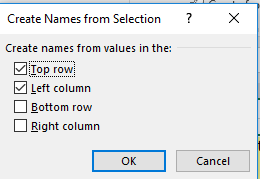
I’d next select F3:B22, thereby spanning all the specialty aggregate names along with the week-wait values data. While the selection is in force I can muster an old but valuable option, Formulas > Create from Selection in the Defined Names button group. That run-through takes me here:

wait1

Click OK and each row and column in the selection receives a range name coined by the label to its left or immediately above its column (note that labels themselves are not enrolled in the range, and Excel’s reference to values in the above may mislead you. The ranges here are all textual). And by way of a final, preparatory touch, I’d consecutively number the weeks right above their columns in row 2, assigning 1 to 0-1 Weeks, 2 to 1-2 Weeks, and so on.

Remember we’re attempting to tally the aggregate number of patients awaiting treatment in a selected speciality for from 0 to a specified number of weeks. Per that agenda, I’ll enter the number of weeks – that is, the maximum specified week wait – in F2. Let’s say I enter 15, and then proceed to click on Ophthamology cell F8. I’m thus instructing the budding formula to calculate the number of patients who awaited treatment in that speciality for a period of up to 15 weeks. Next I’ll enter the formula, say in E2:

=SUM(OFFSET(INDIRECT(CELL(“address”)),0,0,1,F2+1))

I sense an explanation is in order, so here goes. In the final analysis, of course, the above expression sums patient numbers for the given specialty across a variable number of weeks – in the example, 15; and the formulaic potential to confront those variables is realized here by the OFFSET function.

OFFSET offers itself in two syntactical varieties, one requiring three arguments, the other five. The lengthier version, applied here, serves to identify the coordinates of a range, which will in turn submit itself to the SUM. In our case, the first of OFFSET’s arguments gives itself over to the INDIRECT function, itself performing a cell-evaluational role upon the nested CELL(“address”) expression. CELL(“address”) will, upon a refresh of the spreadsheet (triggered by the F9 key or some data entry elsewhere on the worksheet), return the address of the cell in which the cellpointer currently finds itself. Thus, for example, if you enter =CELL(“address”) in A12 and proceed to enter a value in C32, the function back in A12 will return $C$32 – the cell reference, not the cell’s value. But $C$32 is a textual outcome, i.e., not =$C$32. INDIRECT then restores a bona fide cell-referring status to $C$32, and reports the value currently stored in that cell.

So what does this have to do with our task? This: click on any medical specialty in F3:F22 and refresh the sheet. The address of that specialty populates OFFSET. For example, click on the name Ophthalmology refresh, and OFFSET will turn up F8, for our purposes the first cell in the range we’re striving to define. The two zeroes that follow tell OFFSET to in fact to define the range precisely at the F8 inaugural point – that is, not to move any rows or any columns away from that F8 range anchor. The 1 next instructs the formula that the imminent range comprises but one row – the row on which the Ophthalmology data are resting; and the F2+1 measures the range’s width in number of columns – in our case 16, or 15 plus 1 – plus 1, because the data for week 15 stand in the 16th column from the medical speciality in which we clicked to initiate the formula.

The answer in this particular case, then, is 330,472, counting of the number of ophthalmology patients who had to wait up to 15 weeks to receive treatment; and you could divide that figure by the Ophthalmology patient total – VLOOKUP(CELL(“contents”),F4:BH22,55,FALSE) – to learn that about 86% of the patients were waiting up to 15 weeks for treatment. So again, by clicking on Ophthalmology in F8 and refreshing the spreadsheet, the formula is put to work.

But there are other formulas that will work, too.

The Guardian’s Top 100 Footballers: Rating the Rankings

8 Jan

You like to window shop, I like to Windows shop; and my curiosity-driven gaze through the virtual panes shone its beam on yet one more data set devoted to the ranking of athletes, this time of the football/soccer genus.

Wheeled into view by the Guardian in Google spreadsheet mode and attired anew here for you in Excel:

2016-guardian-worlds-top-100-footballers-voting

the data sort the results of the aggregated, columned (P through EI) judgements of 124 sportswriters, each of whom nominated up to 40 players assessing them a point evaluation ranging from a maximum of 40 downwards (you may want to consult Sky Sports’ differently-ordered top 100 here).

Heading the list – which highlights the top 100, though 380 players were presented to the judges – and unsurprisingly so, is Portugal’s. and Real Madrid’s. Cristiano Ronaldo, putting 68 points worth of distance between himself and the no-less-unsurprising Lionel Messi, he of Argentina and Barcelona. That three of the rankings’ top five players populate the same Barcelona front line. even as that team merely holds down second place in its league. is the kind of sporting discrepancy sure to give the sages something to think about, but I’m a spreadsheet guy. And the fact that only Ronaldo and Messi appeared on every sportswriter’s ballot – and that, as a consequence, some rather formidable players found no place at all among soe writers’ top 40 – is perhaps equally extraordinary. Indeed – the Algerian and Leicester City star Riyad Mahrez won one first-place vote – even as he was completely shunned by 16 other writers.

But what of the spreadsheet? Start at the beginning, with its header data walking on the sheet’s ceiling at A1:O1. Those identifiers need to be lowered into row 4, hard by their attendant field data; and by extension, the hyperlink to the judges’ names and rules for assigning rankings stretching across the merged cell P3 must be moved, or its contiguity to the dataset will commit an offside against any pivot table building from the records against the perpetrator.

I’m not sure why the sheet’s numbers were left aligned, either, though I’m not pressing any charges for that formatting decision. And because it’s clear that the Guardian has player birth dates – otherwise, the Age at 20 Dec 2016 data could not have been furnished – exactitude might have been slightly better served, and pretty easily at that, via the YEARFRAC function, and an age calculation extended to a couple of decimal points, e.g. 27.83.

But if all that qualifies as a nit-pick, the rankings themselves in column A could be more justifiably questioned. Players with equivalent ratings, e.g. Alex Teixeira and Anthony Modeste at 156, were enumerated thusly: 156=, an expression that strips the number of its quantitative standing. Why not assign a 156 to each player instead, as do the women’s and men’s tennis rankings we reviewed in our immediately previous posts?

Moreover, some apparently identical scores appear in fact to have been differentiated. Raphaël Varane and Serge Aurier both check in with 34 points and five sportswriter votes cast, the latter a rankings disambiguator for the Guardian; yet Varane earns a ranking of 118 to Aurier’s 119. The same could be said about Omar Abdul Rahman and William Carvalho, invidiously niched at 133 and 134. In any event, if you do want to numerate all the rankings, say by figuring average ranking by country and/or team, then point a find-and-replace at the data, finding every = and replacing these with nothing.

I’d also withdraw the blank, colored row 105 that hems the top 100 from the lesser-rated crew beneath; while the row means to delimit and frame the footballing elite, per the Guardian’s story, any analysis of the larger cohort of course would need to unify the data set – and that means dismissing its blank rows. In that spirit, then, you’d also want to disavow row 129; whatever informational service its text may perform, it isn’t a ranked player’s record. I also can’t explain why some of the country and club entries, e.g. cells G207 and H219, appear in blue, or why Antonio Candreva in row 213 is described as Italian when his countrymen are identified with Italy. In addition, Nani’s (row 83) nationality is ascribed to Portugal, but with a superfluous space, as is Paul Pogba’s France (row 21).

Also, the formulas cascading down the Up/down field in B that meter a player’s current movement through the rankings from his 2015 score could have simply read =C5-A5, for example, sans the SUM function and its parenthetical braces.

But note as well that players who went unranked in the preceding year received a hard-coded NEW classification for 2016 that in fact could have been subsumed formulaically, e.g.

=IF(C5-=0,”NEW”,C5-A5).

You’ll also note that the formulas in O compiling the number of a player’s first-place votes look like this:

=COUNTIF(P5:EI5). “40”)

The quotes are superfluous, and I confess to surprise that the formula works. The entries in P5:EI5 are values, after all, not labels. But work it does.

And for another matter that warrants our scrutiny, consider the Highest Score Removed field in L. The Guardian determined that any player’s highest rank – or at least one instance thereof – be stricken from his final score as an outlier. That sort of decision rule isn’t unprecedented – figure skating and gymnastics judging protocols often drop highest and lowest scores – but in those sports the extremes at both the high and low end are ignored; the Guardian only points its thumb down at the high – again, just one high, even if others have been issued to the player. Ronaldo’s 63 first-place votes are thus contracted to 62, but those 62 of course exhibit precisely the same score as the ostensible outlier.

Moreover, and unlike other juried events, the number of judges who decided to score a given player here is very much a variable. Thus we need to account for the 76 players whose final score of 0 belies their receipt of an actual, if solitary, vote. That vote, of course, was barred as an outlier, leaving the player with nothing, so to speak. Along these exclusionary lines, it follows then that players named by exactly two sportswriters incurred the loss of their higher score – even though one could challenge the insistence that these are somehow more outlying than their other, lower score.

The matter of how to dispose of score extremes has been disputed (see this mathematical exploration)  – it would be difficult, for example, to imagine an even halfway-well-intentioned teacher dropping a student’s highest test score (though the classroom scenario features one judge of many test performances; in figure skating many judges arbitrate one performance) – but in the interests of pressing on we could, for example, learn something about the larger aggregate picture by approving a data set comprising the 254 players who received at least one Raw Total point, , i.e. prior to the removal of their highest score. If we’re provisionally satisfied with the makeup of that cadre, we could for starters simply pivot table a count of players by country and country raw point total:

Row: Nationality

Values: Nationality (by Count, of course; the data are textual).

RAW TOTAL (Sum).

RAW TOTAL (again, by Average, formatted to two decimals and with a comma)

I get, in excerpt:

rank

We see that Spanish players win appearance honors, but among the more productive countries Argentina claims the highest average player score, and by quite a margin.

And if you’re wondering, there’s one American player in there, even as he didn’t make the screen shot cut above – Christian Pulisic, who plays for the German Borussia Dortmund squad and is ranked 138th, with 25 raw-totalled points. But he’s only 18 years old – and if we rank the players by age, he comes in at number 2.