Archive | October, 2012

The World as Spreadsheet: Part 1

25 Oct

What do chess, scrabble, bingo, planet earth, and Excel have in common? Not much, save one central, jointly indispensable commonality: all of the above conceive of themselves as grids of various vastness, cubed into coordinates named by the junctions of their row and columns.

The earthly cell references are longitudes and latitudes, pinpointing the world’s intersections under the descriptive auspices of one of two vocabularies. One speaks the language of N/S and E/W, e.g., Boston=42◦21◦N/71◦03◦E, the other a language of continuum, Boston: 42.321597/-71.09115, the minuses deriving from positions either east of the Greenwich meridian and/or south of the equator.

It’s the latter dialect that serves spreadsheet cartographers well, its values strung along a unitary span. And what’s to be made of all this? To begin to answer that quasi-rhetorical question, let’s return to the Washington DC crime data at which we looked a number of posts ago (August 14). We subjected the data there to a series of time-based scrutinies, e.g., crimes by day of the week and the like. But the data also plot the crimes in space, by companioning them with their latitudes and longitudes.

So here then is the plan: why not break out the data by location, lining a pivot table Row Labels area with latitudes and its perpendicular, the Column Labels area, wth longitudes? Each cell in the table, marking the crossroad of a latitude and longitude, would thus be addressed in spatial terms, and in a manner that would more-or-less respect the proportionate distances between coordinates. In other words, we could in effect literally map the data – a kind of character-based data viz, the map comprising the values slotted in their cells. Then tincture the numbers with a conditional format (the discussion of which is planned for Part 2) and you’ve heat-mapped the table.

To start afresh, you can download the DC data here:

Once accessed, the workbook-map gestates into shape pretty easily – once we get past a couple of provisos. You’ll note that the latitudes and longitudes (let’s call them lats and longs henceforth, if those abridgements aren’t too cute. But if you’re already acquiescing in the z in data “viz”, you’ll doubtless cut me this slack) are extended to 12 decimal points, in the interests of placing the data precisely at the crime scene.  But that very exactitude militates against useful data generalization. We want to able to abstract the data slightly upwards, coarsening the lats and longs into larger districts across which crime patterns might, or might not, coalesce.  When you consider that one degree of longitude in DC reaches across about 54 miles (see the web site http://andrew.hedges.name/experiments/haversine/ for some neat fill-in-the-blanks lat/long distance calculations), drilling that span down 14 decimal places will probably yield a unit measurable with a ruler.

As a result, I’ll propose (of course all is changeable in these regards) that we round the lats and longs to 3 places. If I’ve done the math reasonably correctly, that’ll take us to thousandths of a degree, for longs in DC about .054 miles, or about 260 feet – still pretty drilled-down, but a workable start.  Remember of course that a simple reformat won’t impose any substantive, valuational change upon the numbers. Formatting

38.89345352158069

as

38.893

Will still preserve all those 14-decimal points, and formulas will continue to work with them. All you will have changed is the number’s appearance. Rather, we need the ROUND function:

=ROUND(cell reference,number of decimal points to round off)

a mechanism that changes the substantive value of the number being rounded. Thus if the prolix number above sits back in cell A1 then

=ROUND(A1,3)

will bring about an actual, usable 38.893. So let’s do the following: select the K and L columns, these sporting superfluous city information, and delete their contents. Then name K Lat and L Long. In K2 write

=ROUND(I2,3)

and in L2

=ROUND(J2,3)

And copy both down their respective columns (you may want to widen L in order to be able to view the 3 decimal points).

Then it’s pivot-table time. Put the table in place in drag LAT to the Row Labels area. I get 178 values spurting downwards, probably too many to support meaningful generalizations. Thus we can group the lats by intervals of .01, although needless to say you can fool around with other increments (recall that our rounding offs above acted upon individual lats. Here we’re enfolding several lats into a manageable cohort. Nevertheless, rounding itself does enforce a manner of grouping, as well. Rounding 38.9913 and 38.9911 to 3 decimals renders them identical). Click anywhere among the lat data and click PivotTable Tools > Options > Group Selection. Type 0.01 in the By: field. You should see:

Now we can move to do something similar to the longitudes. Drag LONG to the Column Labels area, and the results will bolt all the way to the GW column (is that George Washington?), rather a way-out venue. Again, click among the data and return to Group Selection and an 0.01 reading. That compresses the grouped numbers back to the V column.

Then drag OFFENSE into the Values area. You should see something like this (my shot is excerpted):

You’re starting to get the idea. We really have in effect mapped the data against their spatial correspondences; note the clustering of crimes around the -77.034/-77.024 longitude, for example, as well as the numerous blank spaces across the table, which may – probably – denote uninhabited precincts. That is to be researched, of course, but in any case the point has been established – namely that DC crimes are by no means randomly dispersed (of course a closer consideration would require a scaling of crime numbers against the populations of the locational groupings above; and by adding a second OFFENSE entry, this time to the Report Filter area, specific crime-type distributions could be bared).

Now for a final observation today on the Group Selection feature. I had recommended a rounding of  the workbook  lats and longs to a 3-decimal point bore, in order to tailor the physical spaces with which we’ve been working into what could be termed sociologically practicable sizes. But there’s another, more strictly operational reason to round off: if you toss long-decimal values into a pivot table and proceed to group them, you surrender all formatting rights to the outcome. That is, if you had grouped the native 14-decimal point values and attempted to group them, they’d look something like this:
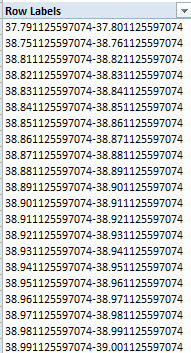
And the point is that the hallucinogenic tableau above can’t be formatted any further. The grouping absconds with the values’ numeric status and relegates them to inoperable, inert text. If you doubt me, try formatting them.

And if you succeed, you can call me – collect.
The Twitter Files, Part 2: (Some) Things You Can Do

18 Oct

A Bit of Streamlining

When we last exchanged business cards you’ll recall my introduction of the Text to Columns feature, a time-honored, relatively self-evident means for farming out data amassed into one cell into a set of usable columns:


But in the course of one my solidtudinous walks in the forest it occurred to me that the lines above could be drawn more sparingly:

Here the lines flank all the incipient date and time data, but this will work nevertheless; the resulting expression retains a numerical, as opposed to text, character, and as such remains friendly to the WEEKDAY, YEAR, HOUR, etc. class of time-culling functions.

Some Watchwords About the Data

By way of additional review I’ll remind you that these posts draw upon tweet downloads emanating from the www.twdocs.com site, and in the intervening week during which I’ve splashed around the data I’ve learned some additional, cautionary things which you need to know, but which can be reconciled pretty easily:

  • A two-word search, e.g., Obama Romney, appears to proceed under the aegis of an OR operator. That is, you may turn up a tweet containing only one of the two words.
  • For a small proportion of downloaded tweets, the searched-for term(s) may not appear at all. I’ve emailed twdocs about this curiosity, and as of this writing have yet to hear from them.

Of course these anomalies can compromise your takes on the data, but again, there’s a practicable way to deal with these loose ends. Say I’m requesting tweets containing Obama Romney. To ascertain that I’m getting what I want once the download materializes, I can click anywhere among the results and turn the Filter feature on (Data tab > Filter in the Sort & Filter button group). Click the down arrow atop the Text field and move into Text Filters > Does Not Contain. Enter:

(Had you been seeking Obama Romney as a contiguous text entry – highly unlikely, in this case – you would have entered both words in the first field.) Click OK, and you should view a small number of records remaining onscreen, their row headers colored blue. Select all the row headers, right-click anywhere among the selection, and click Delete Row. Then turn the Filter button off, and to your relief all the other records – the ones that do contain the terms Obama and Romney – will reappear. Your data will have thereby been cleaned. It’s an irritant, but a 30-second one.

 The Data

In the interests of continuity I’ve supplied another workbook built on the big data key-term search, but these data were garnered today, Much of the preliminary work, including the data sweep described above, has already been executed. You can get the workbook here:

 bigdata2

Now let’s look at some – but only some – of the things you can do with the data.

Tweets per Hour: Calculating Velocity

Once you’ve dropped that passel of tweets onto a worksheet and vetted its data character, you might want to speed-gun the results, that is, count the tweets on the worksheet and divide the sum by the length of time they took to gain a foothold on Twitter’s servers — a simple measure of topic popularity. Working with the data as they’re positioned on Bigdata2, the relevant formula looks something like this:

=COUNT(C2:C1229)/((MAX(C2:C1229)-MIN(C2:C1229))*24)

What, then, is this formula doing? It’s trading on the understanding that dates are really numbers, and as such is determining the largest number – that is, the latest date/time – staking the column, and subtracting from it the smallest number – that is, the earliest date/time. That difference is what’s divided into the tweet count. (Note: you needn’t bind yourself to the precise 1229 last-row value when penning the formulas; you can enter 5000, for example, because Excel will ignore any blank cells here.)

But what about that 24? This curious addendum to the formula acts upon the time segment of the date’s numeric equivalent. To explain:  if October 18, 2012 is rendered numerically as 41200 (the number of days distancing it from the baseline January 1, 1900), then 41200.5 stands for noon on that date – the .5 standing for half of the elapsed day. A decimal of .25, then, represents 6:00am – or the passage of one-quarter of the day. And if you multiply .25 by 24, you get 6 – 6 hours that is.  And in turn if you subtract the earliest recorded date here from the latest, you get .471794; multiply that number by 24 and you get 11.32 hours – and that’s the number you’d divide into the number of tweets. (Just remember that 6.2 hours isn’t 6:20am; it’s 6:12, because .2 of an hour is a decimally-rendered 12 minutes).

Thus our data drive a per-hour tweet average of 209.0973 (yes, you may want to scale down some decimal points).

Tallying RTs

Another metric of apparent interest out there is retweet frequency, a calculation to which our data are most amenable. (www.retweetrank.com lists the top 10 tweeters whose messages are retweeted; when I last looked Marshall Mathers/AKA Eminem  topped the league leaders. He has over 12,000,000 followers, and follows none. You can draw your own conclusions about the zeitgeist.)

Title the G column RTs, click into G2, and enter:

=IF(LEFT(B2,2)=”RT”,1,0)

(The “RT” isn’t case-sensitive, by the way.)

The formula responds to one of two contingencies: If the tweet’s first two characters are RT, a 1 will register in the relevant cell. If the RT condition isn’t met, a 0 is supplied instead. Copy the formula down the column, and in a blank cell of your choosing that’s out of harm’s way, say J1, enter:

=SUM(G2:G1229)/COUNT(B2:B1229)

What’s we’ve done here is simply total the 1s descending the G column and divide that sum by the number of tweets. I get .276059, which presents itself as 27.61% in percent-format taken to two decimals.

A Measure of Content

Once your tweet download is in place you might well want to prospect the data for key words or terms likely to predominate, or trend, across the tweets. Since the tweets circumscribe a finitely-drawn time span, this sort of evidence could be of more than a little journalistic utility.

Here’s what you can do to capture trending terms: Enter the term for which you’re currently searching, say in K1. I’ve entered the word “security” (without the quotes), but it could be anything, and the entry is always changeable. Next, title the H column TrendingTerm or something comparable and enter in H2:

=IF(ISERR(SEARCH(K$1,B2)),0,1)

To explain: this formula owes its efficacy to the SEARCH function, which inspects a cell (here B2) for a search term (the first element or argument, in this case the contents of K1). If found, the starting position of the term is returned. If the item isn’t there, the #VALUE error message commands the cell. Thus if I write

I like brownies.

in cell B16 and brownies in A19,

=SEARCH(A19,B16)

Will yield 8, the character position at which “brownies” begins (you can also enter “brownies” in the formula, in lieu of A19). I should add that SEARCH and FIND are near-twins; the difference is that SEARCH exhibits case-insensitivity

Thus our formula in H2 issues an IF statement: if the searched-for term in cell in K1 doesn’t appear in H2 and spurs an error message as a result, a 0 alights in H2. If the term is found and thus yields a starting position number, H2 receives a 1 instead.

Copy the formula down the H column (remember, you need that absolute reference dollar sign to the immediate left of the 1 in K$1). Again as with our G-column activity, a quaintly binary stream of 1s and 0s plunge down the column. Next, say in K2, enter:

=SUM(H2:H1229)/COUNTA(B2:B1229)

The formula is identical in spirit to our RT frequency calculation: it adds the H column’s values and divides the result by the number of all tweets. For “security” I get a 10.67% incidence rate, denoting the percent of all collected tweets in which “security” appears. If I replace “security” with say, “cloud”, I get 8.71%. You can obviously enter any term, though.

And once you nail that understanding down there’s no reason why you can add additional trend-search columns in I,J,K, etc., calling upon the above formulas (with appropriate cell addressing, of course). You can enter the terms you’re searching in K1, L1, M1, etc., and have the respective columns search for each. Of course “big data” has merely served as an example; this whole exercise can be applied to more provocative tweet searches.

And of Course, Some Pivot Tabling

Of course. Once the data are properly groomed a battery of possible pivot tables awaits. For example, click anywhere in the data and order up a pivot table. For starters you can

drag Date into the Row Labels area.

To start, you’ll behold something like this:

You’ll doubtless want to group these data into day and/or hour and/or minute units. Click anywhere among the dates and Click PivotTable Tools > Options > Group Selection in the Group Button group. You should find the Months parameter selected. Click it off and click Days on. You should see:

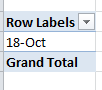
Not very differentiating, is it? That result tells you that all the collected tweets with which we’re working were composed today, bidding us to fine-grain the data. Click on the 18-Oct (or however your date is formatted), return to the Group Selection window and click Days off, and Hours on. You should see:

That’s probably more like it. Then drag Text into the Values area. You should see:

Now that’s a touch more interesting, again hitched to the need to understand the operative time zones (see Part 1).

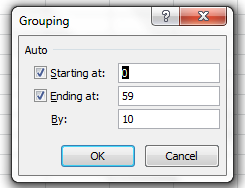
Now for finer granularity still, drag the Minutes field beneath Date in the Row Label area. Click anywhere among the Minute data and revisit the Group Selection window. This time you should see:

For the sake of variety, replace the 10 in By: with 5. You should see (the screen shot excerpts the whole):

You get the point. Here we see tweet frequencies distributed across 5-minute intervals.

Allow me emphasize that the data run-throughs I’ve recounted here represent only some of the analytical work you can pursue, and only some of the ways in which that work can be realized. There is assuredly more you can do; hope you’re inspired to do and learn more.  As a matter of fact, it sounds like the stuff of which all-day workshops are made. Interested? Then give my agent a call.

I just realized –  I don’t have an agent.

#hashtag Nation: Recording the Vox Populi on Twitter (Part 1)

11 Oct

Election years call for new and intrepid ideas, policies powered to rise above the rude hurly burly of we vs. they, consecrating their noble intentions to nothing less than the greater national good and putting the sectarians to rout. So here’s my idea: Let us tax all Americans in proportion to their Twitter following.

Fair, indubitably transparent, and toughened against all loopholes, the plan would finally redistribute the wealth of Bill Gates (8,505,521 followers) until we’d get to call it the Melinda Gates Foundation, expropriate the assets of Lady Gaga (follower count: an end-of-civilization-as-we-know-it 30,211,539), and gladden the meek and diffident Twitterers with their double-digited coteries, who’d be emboldened to slip the plain brown wrappers off their bankbooks with pride. And once implemented we’d never again have to pester Mitt Romney about his returns; we’d know. In short, economic justice at last.

But there’s more you can do with Twitter than just hammer another plank into some dreamer’s platform. There’s information sounding faintly through the white noise – at least I think there is, somewhere, somehow; and indeed, a thick catalogue of apps out there perform, or purport to perform, all manner of analysis on the billions of tweets riddling the cyber cosmos.

Now while I can hardly claim to have surveyed all of these (and you’d probably think ill of me had), but after some concerted fooling around with a number of candidates I’ve cast my vote – a provisional one, mind you – for www.twdocs.com, a free and acceptably easy, and remarkably speedy tool for downloading tweets by any key term into Excel. But the analysis writ large, requires about two-and-a-half-steps – that is, getting the data into your worksheet, and then deciding what you can learn from them. The half-step trudges between the other two – understanding what sort of data you’re about to get, and by extension, perhaps, what you’re not going to get from twdocs and Twitter in general.

Some Caveats

That is to say: the analysis of tweet traffic – the figuring of tweet (and retweet) frequencies by key term broken out by month, day, hour, minute, or perhaps even seconds, user stats, and perhaps even a bit of content analysis – is constrained in part by the number of tweets you can rightly hope to access. It appears Twitter sizes its tweet-download maximum at about the most recent 1500 (the number I’ve seen at numerous app sites), and twdocs appears to reach back to only the last week’s worth of tweets, an interval which may slim some outputs well beneath 1500, simply because the searched-for term hasn’t been invoked that often in the past seven-or-so days. Also, the results aren’t quite real-time, though they’re real close. In addition, while every tweet entry that boxes itself in your cells is time-stamped the entries need to be calibrated to the understanding that people are tweeting worldwide, so one tweeter’s 8:00am is another’s 1:00pm. (The data I download seem to lag precisely an hour behind my Greenwich time zone, which either bespeaks an hour delay or the fact that twdoc’s server is somewhere over the Atlantic. In fact and for what it’s worth, twdoc is Latvia-based; in any case you should check the data against your zone.) So, if among other things you’re interested in the rates of tweeting activity for a given topic, these data should stand you in good stead.

Keep in mind as well that you can download data for the same search item the next week, too, at which point you can stack this week’s output atop the earlier ones, and thus still accumulate a large, relatively current and continuous batch of tweets. As we hope to demonstrate, you probably want to search for terms that capture your intent as generically as possible. You can search for @obama, #obama, and Obama, but the last-named should excavate the largest set of entries, and it does. A short while prior to typing this sentence, I entered Obama (in search of a max of 1200 results) and came away with 1200 entries spanning 2 minutes and 56 seconds. Entering #obama just a bit later yielded its 1200 in 1:58:05, or nearly two hours. The twdocs engine seems impressively accurate and comprehensive.

Giving It A try

Getting twdocs to work seems pretty straightforward. After supplying the site with your Twitter identity and following the start instructions (most of which I no longer remember, truth to be told; you will in addition be asked to consent to twdoc’s access of your identity whenever you log into the site) you should be transported here:

My user experience advises me to first click the CSV (comma separated values) option (in actuality a less troublesome selection than XLS) and then to click the Latest SEARCH results for…link. You’ll be brought here:

(Note the results box, in which you can type a figure topping at 1500. Note in turn the varied format options, although again, for spreadsheet purposes I use CSV – it just happens to provide a cleaner alternative, and I’m presently bypassing the advanced options for a reason). You can basically type anything in the Query field, e.g., @obama, #obama, or just plain Obama. (You can apparently type John Doe without the modifying “   “.) Then click Go. Soon this bar should stretch itself out in the lower reaches of your screen:

Just click Open.

For illustration’s sake, I downloaded tweets subsuming the term bigdata, something of a hot topic these days (and not to be confused with bighair), and saved the results as an Excel file (diverting it from its default CSV format).Here’s the file:

bigdata

For starters, the data look something like this:

After retailoring the column widths, we need decide what to do next. At least two of the presented columns,  in_reply_to and source, seem be of no informational consequence; the id field, currently formatted in Scientific notation mode, might however have a role to play in the analysis, as we hope to show. (If you want to see the ids in their standard numeric incarnation select the entire column and click Number in the drop-down menu heading the Home tab >Number button group. Never mind the decimal points.)

A Tried and Tested Tool

Now if you’re interested in rates – i.e., tweets per hour, etc. – you most assuredly will be interested in the created_at field in column C (needless to say, you can rename the columns). The data here amalgamate weekday, day of month, and time of tweet data, and as such need to be broken out. And the instrument towards this end is none other than the classic Text to Columns options, which dices information in a cell into sections, the widths of which are your call. When all is said and done we want to have assigned weekday, day-month, hour, and minute to discrete, independent columns, the better to pivot table them and the like.

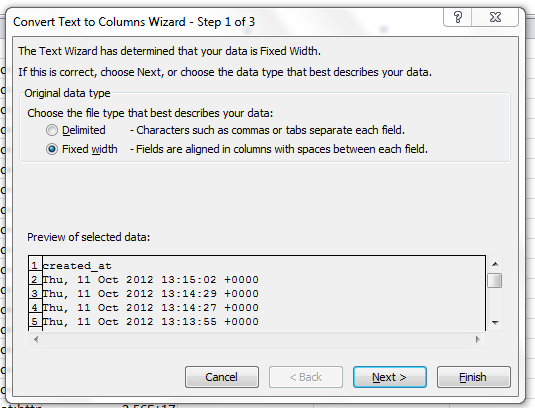
Applying Text to Columns is usually (usually) trouble-free. To start, select the C column, and click the Data tab > Text to Columns in the Data Tools button group. You should see:

Note that Excel has typed the data as fixed width, the nature of which is explained alongside the term. In fact, every expression the C column happens to be 31 characters long (that is, fixed), and appears to be cleanly separable into columns wherever a space is interpolated as we’re told above. Click Next, and you’ll see

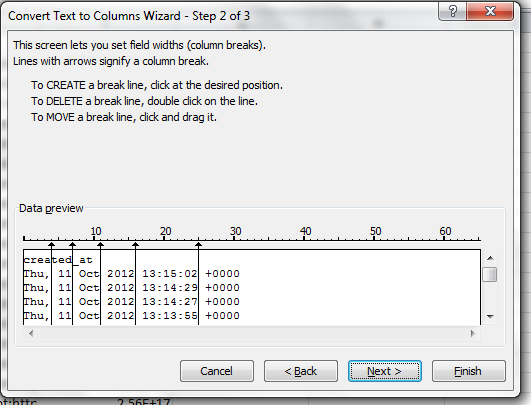
Again, Excel has drawn demarcating lines at each space, proposing to split each cell’s data into the respective columns recommended above. But we’ve been entrusted with some discretion in this matter, and what I want to do gather the 11, the Oct, and the 2012 into a single cell instead of the proposed three showing in the screen shot. In order to realize that efficiency I’m going to double-click the lines separating the 11 and Oct, and Oct and 2012, as per Excel’s instructions:

You’ll see why, I hope. Then click Next:

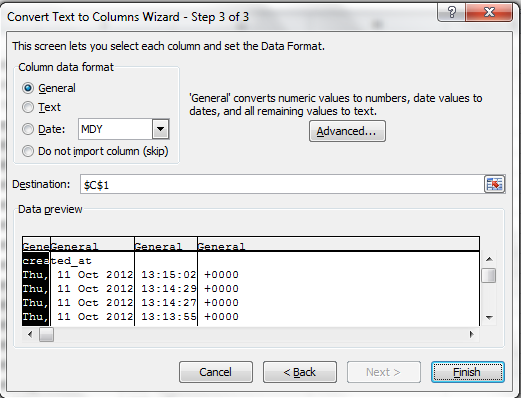
Now take note of what we want to see, and what we don’t want to see. My plan is to bead together 11-Oct-2012 in the first data row, for example, a mathematical date (as opposed to text) entry from which we can then ferret weekday, month, and year if we want to. If I’ve gotten that right, then we don’t need the leftmost Thu, entry, with that superfluous comma that would have to squelched, if only for formatting reasons. But again, if I’ve played my cards right, we’ll see that the day is already folded into 11-Oct-2012, as it were. In that light I can click the column header above Thu, and click the Do not import column (skip) button, and do the same for the column sporting the redundant and ultimately useless +0000 data:

Then click Finish. You should see:

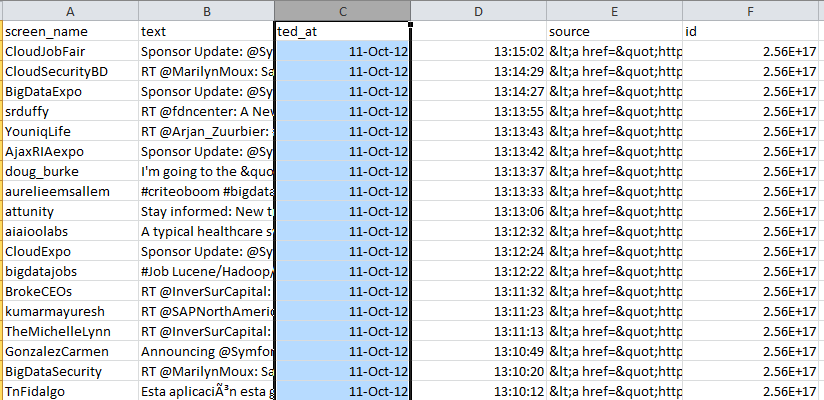
Remember we’re about to perform an act of fission, parting the column on which we’re working into two serviceable columns – and Excel in turn won’t make room for the new field(s) by inserting a corresponding set of insurgent columns. Rather, Excel will simply overwrite any data in as many adjoining columns to the right of the data as are required by the new columns. But we’re fortunate in this case; we’re halving the current column into two – and so only one existing column will be overwritten – one of the columns we don’t need: in_reply_to. Click Finish. You should see:

Now date has been severed from time. (Note by the way the original column title – created_at – has also been sundered, but that’s not a big deal. Just retitle it, and also title the new column carrying the time data.)

We’re not finished, because we still need to see day-of-week, hour, and minute fields in order to empower our analysis (I’m not providing seconds as a unit of time though the data are available; but operating at that level of precision will start to get messy here). In the E column, the one containing the extraneous “source” data, type in E2

=WEEKDAY(C2)

You should return the value 5, or Thursday. Copy that formula down the column and retitle it Day or something like it. In the vacant G column type in G2

=HOUR(D2)

And copy down the column (and title the column, too). I get 13 in G2, as I’m operating with European time settings.

And in H2 type

=MINUTE(D2)

And copy down the column (it needs a header, too).

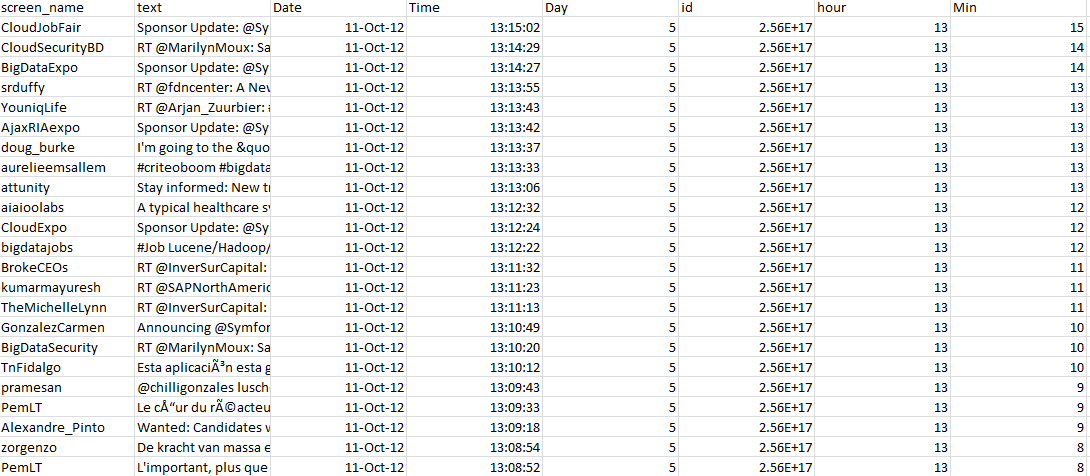
Your workbook should look something like this:

And if you haven’t been saving the workbook throughout, save it now!

Now the sheet is primed for analysis. Let’s see what we can do with it.

In the meantime, just remember – if you stop following Lady Gaga, you’re an accessory to tax evasion.