Archive | November, 2012

AIDS Data, Part 2: Sparklines Capture the Small Picture

29 Nov

The AIDs data with which we’ve been working and pivot tabling – that is, multi-region by multi-year breakouts of the epidemic, e.g.:

snuggly dovetails with Sparklines, Edward Tufte’s  mini-charting fillip that Excel enfolded into its 2010 release (for some deep background on all this, see Tufte’s discussion). Sparklines portray but one row’s worth of data each, locking a range-hugging stream of charts into standard, address-bearing cells:


You’ll note the Sparklines’ presentational gauntness – their label-free axes and Spartan décor, and no; you wouldn’t slap a Sparkline on your bosses desk, or give it pride of place in your firm’s annual report. But the Sparklines’ taciturnity supposes a method to their madness: the barebones isolation of data trajectories alone enforce a like-for-like serial scan down the column, a rhythm of perusal that frames a big comparative picture down the rows. Sparklines aren’t pretty, then, but their very banality sharpens the point they try to communicate. And they’re easy to construct.

By way of exemplification we can work with the UNAIDS workbook referenced in the previous post, and put together a pivot table as follows:

Row Labels area: Region

Column Labels area: Year

Values: Estimated number of Children newly infected (or however you’ve titled this field; see last week’s post).

(Note that you should filter the Western and Central Europe and North America row out of Row Labels, in view of its preponderance of empty data cells for the years 1990-2010.)

Now on to the Sparklines (remember that the feature debuted with the 2010 release).  Click the Insert tab and observe the three Sparklines options stocking its button group.  Click Line, thus triggering the Create Sparklines dialog box and its request for two bits of information:


Data range asks you to earmark the range of contributory data from which the Sparklines will be drawn. That range – really a set of mini-ranges – must comprise data only, and need exclude any data point or axis labels. In my pivot table that range blocks out B5:W14, each row of which is going to spur a Sparkline all its own. Thus I’m going to identify X5:X14, the range that immediately adjoins the data to their right. Click OK, and the Sparklines you see two screen shots back should fill the range.

Again the peculiar, albeit limited, virtues of Sparklines beg your attention. The serial iteration of the lines casts the data into an irresistibly comparative mode, reporting each region’s AIDS totals in a kind of visual arpeggiation. Note the near-straight-line ascent of the disease figures for the Middle East and North Africa region, held up against the curvilinear bend of Sub-Saharan Africa, and so on.

Those trajectories point up an important, but changeable, default setting of Sparklines. You’ll note the Sub-Saharan numbers far exceed those of Middle East-North Africa, but each Sparkline scales its curve against the data in its row alone, abjuring any global, range-wide absolute set of values. To see what I mean, click anywhere among the Sparklines. Note first of all that all the Sparklines are selected, because Excel assumes any formatting overhauls of the lines are to be implemented en masse. Note in turn that the Sparkline Tools tab bursts on screen; click its Design tab > Axis in the Group button group and you’ll see:


Note the Automatic for Each Sparkline default, sizing the vertical axis to each row’s values. That selection is plainly to be preferred here, because the pivot table’s Global totals will necessarily overwhelm those of the companion rows; clicking the Same for All Sparklines in the Vertical Axis Maximum Value Options area will run all the lines through an identical axis maximum, contorting the results:


In any case, you’ll want to play around with other Sparkline variations, e.g., particularly the Show button group and its point possibilities. For example, select the Sparklines and tick the High and Low point boxes:


Many other modifications are relatively self-evident, e.g, the style and color options.  The Ungroup command will disperse the Sparklines, allowing the user to impose formatting remakes upon particular lines, but given their presentational of-a-piece character, you’re not likely to invest in this strategy.

Note in addition that if you drag the current Data values entry away and replace it with any of the many other AIDs data parameters  the Sparklines will naturally, and immediately, redraw themselves, resonating to the insurgent values now place. (But note that if you instate a new set of values in the Data values area Excel may register these in Count, as opposed to Sum mode, something you’ll then have to change, along with their number formatting.)

And nothing stops you from resizing the Sparklines – only here you need to heighten a row or widen a column to do so, in lieu of dragging a typical chart’s borders.

There’s one final Sparkline capability worth expounding- the three Sparkline types, one of which – Line – we’ve reviewed here in some detail. The Column possibility emulates the garden-variety Column chart motif, in our case massing the data points into glacial monoliths:

The Win/Loss type is something else again, however, and can’t be properly directed to our data. Commensurate with its name, Win/Loss construes its data in brute binary terms, resting any positive value atop a virtual horizontal axis, and slipping any negatives beneath it.

To illustrate – if I chart a team’s wins and losses across a season and accompany the outcomes with a simple IF statement issuing 1 for a win, and -1 for a loss, e.g.:

The Win/Loss Sparkline will depict that second row of data thusly:

And if you click through the Sparkline Tools Design tab > Axis > Horizontal Axis Options > Show Axis sequence, you’ll get

That is, an actual horizontal axis centers itself across the Sparkline.

Thus if you need to subject your data to row-by-row scrutiny, Sparklines hold out a neat, practicable means for charting the numbers, adumbrating a big picture via a range of small ones. So start the picture-taking.

 

AIDS Data: Spreadsheet Epidemiology, Part 1

22 Nov

In a relatively cheery anticipation of World Aids Day on December 1 a United Nations report extols a range of heartening developments in the struggle against the epidemic, including a 43% plummet in the number of HIV infections incurred by children between 2003 and 2011. In this regard you can call up an accompanying workbook carried by the Guardian, recast into Excel form here:

UNAIDS data 2012

The workbook, in particular its Global and regional trend data sheet, comprises annual data compilations across the years 1999 and 2011 both for particular regions and worldwide, thus affording the analyst/journalist a means for corroborating, questioning, and refining the UN findings. So what is there to be done with the data?

We’ll start simply. You’ll note the data present themselves beneath a number of superordinate headings in row 4 (e.g., Number of people living with HIV) in a tripartite, estimate/low estimate/high estimate breakout – and the estimate does not comprise a simple average of the associated high and low.  Exactly how the estimate was figured, then, is a small but material discrepancy that could be placed before the report writers, particularly in view of the missing methodological discussion from which the report suffers.

In addition, the report finds “There were more than 700,000 fewer new HIV infections globally in 2011 than in 2001” (p. 2), the pertinent data for which appear to hold down cells F17 and F27 in the Global worksheet. Doing the math, I get 683,149, but a corresponding bit of subtraction for the Low estimate column (in cells G17 and G27) does yield 722,800, perhaps the number the report wants you to remember here, but one that doesn’t elect the mid-way estimate (and it should be added that the report doesn’t divulge the means by which the estimates were projected).

You have a few things to think about, then, but let’s get back to those headings in Row 4, which in fact top yet another collection of headings in row 5 (estimate, etc.). That two-header-row redundancy qualifies as a must-avoid, in part because the second of the rows will necessarily be regarded as a first row of data instead. Moreover, those upper header titles pull across merged cells, and that’s way too problematic for conventional data organization. The simple way out? Just insert a row between rows 4 and 5, and content yourself with the headings in what is now row 6.

Next problem. Our headings now appear to suffer from a different kind of redundancy – the recurring estimate/Low estimate/High estimate troika that replays itself across the worksheet. In fact, however, any pivot table cobbled from these data will sensitize itself to the problem, and will append distinguishing numbers to same-named fields:

But neither you nor any prospective readers will be satisfied with those identifiers – they are, after all, laconic in the extreme. What you may need to do is simply, and unglamorously, rewrite the headers, e.g., Low estimate, people living with HIV, High estimate, people living with HIV, etc. Not big fun, but it won’t take that long.

Then you can begin to think about pivot tabling. Note that the data already feature summatory, global totals by year in additional to the regional figures; and while these may (apparently) preempt your need to develop aggregated, worldwide yearly totals, you also need to exclude or filter these from many pivot table renderings in order to avoid totaling the same numbers twice. That is, if you put something like the following table into place:

Row Labels: Region

Column Labels: Year

Values:  Estimate, people living with HIV (my retitling)

your Grand Totals will be duplicative, adding the Global data to that of all the regions.

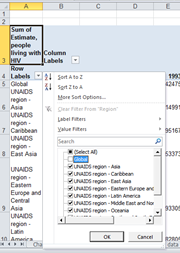
But don’t touch that dial. Execute the above pivot table. The grand total for 1990, for example, comes to 18,536,551.95. But look at the Global figure – 8,945,107.32. That total isn’t quite precisely one-half the Grand Total, and if you perform the same assay on the other years – that is, multiply each Global total by 2 – the products will always fall short of the respective Grand Totals. I can’t explain the disparities, and don’t find any reconciliation in the UN report. In any event, if you construct the sort of table I describe above, you may want to filter the Global item out of the mix, by clicking the Row Labels down arrow and deselecting Global:

(note: the data have been reformatted to exhibit two decimal points and commas when necessitated. In addition, the Row Label data here initially appeared in Wrap Text mode, which I deactivated by selecting the A column and clicking Wrap Text off, via Home tab > Wrap Text in the Alignment button group.)

The above table neatly right-angles regions and years for any particular column of data (try this for two columns simultaneously, e.g., low and high estimates for people living with HIV, and the table gets forbiddingly dense), but there are more views on the data to be opened here.

For example:  the UN report celebrates that 43% yearly diminution in new HIV infections in children from 2003 to 2011 (p. 27). By aiming Excel’s % Difference From command, squirreled behind the Show Values As button at the data (Pivot Table Tools > Show Values As in the Calculations button group; remember I’m working with the 2010 release), you can baseline the numbers for each region at 2003, and see how the subsequent HIV rates plot against that particular year.

To see what I mean, frame a pivot table and put these fields into play:

Row Labels: Region

(Here you may want to readmit the Global region by clicking the Select All. This inclusionary step will let you juxtapose and view the overall HIV reduction totals relative to particular regions. You may also want to deselect the Western and Central Europe and North America item because its data are missing for most years.)

Column Labels: Year

Values: What I’ve called Estimate New Child. HIV (that is, the field detailing the yearly estimate of new HIV infections in children)

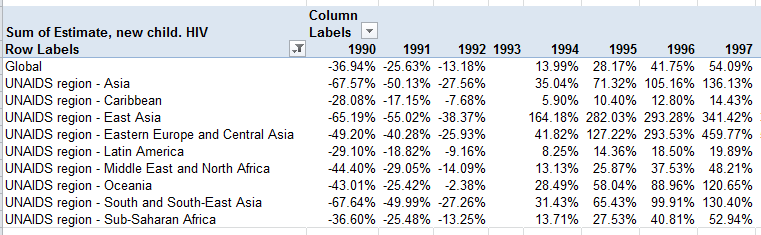
Then click anywhere among the Values data and turn to Pivot Table Tools > Show Values As > % Difference From. In the resulting dialog box click Year in the Base Field field and 1993 as your Base Item. You should see (in excerpted form):

Note the vacant 1993 column, attesting to that year’s baseline status. Because the infection rates for all the other years – on either side of the baseline – are computed against the 1993 numbers, that year can’t be compared to itself.

What this means in turn is that the % Difference From tool can be applied to any year baseline.  Decide on a different year and all the comparative numbers above will change (pre-2010 users can right click anywhere among the values, select Value Field Settings and the Show Values tab, % Difference From, and the appropriate Base Field and Base Item).

That’s unnervingly efficient, and informative. The next bit of enlightenment is presentational – learning to how mini-chart those 22 years’ worth of data via Excel’s Sparklines – and yeah, sorry – you need Excel 2010 for this (but if you don’t, remember that free download beta of the 2013 release). Stay tuned.

Obama-Romney: The County Count

15 Nov

Those of you who  have either long memories or the irrepressible urge to ride herd on your scroll wheel will recall my early post on the breakout of the 2008 presidential election, the one in which John McCain won 72% of America’s counties. That ever-so-slightly counter-intuitive finding owes its piquancy of course to the immensely variable ranging of county sizes, the smaller of which massed in the McCain camp. All of which begs the immensely obvious follow on: so what happened this year?

The raw stuff of an answer is stocked in an Associated Press-compiled county data spreadsheet posted to the Guardian’s web site, at http://www.guardian.co.uk/news/datablog/2012/nov/07/us-2012-election-county-results-download#data

Be advised that if you’re forging that link the totals therein aren’t complete, presenting fractional totals for some counties and none at all for about 200 others; an update awaits, one trusts. And that’s just for starters; the AP broke out some states’ results by city instead of county, inciting an exhilarating round of hoop-jumping by yours truly in order to beat the data into shape (I’ll spare you the blow-by-blow, but I needed a smoke when it was done, and I don’t smoke). You can walk off with my adapted sheet here:

county-wide presidential results 2012

(The county codes in my sheet stand as proxies for their names, a consequence of those arduous shape-beating labors pointed to above.)

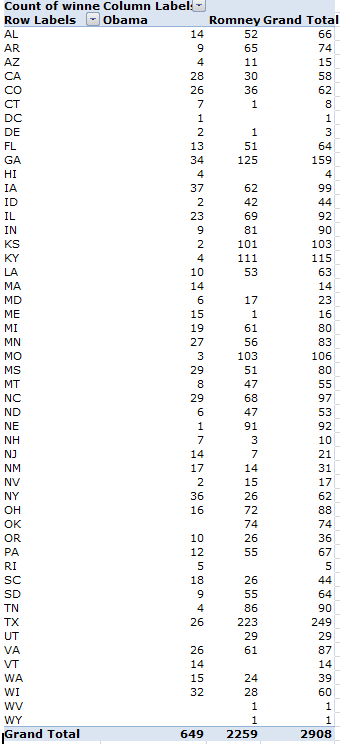
In any event, after having cleared the sweat from my brow and the keyboard, I determined that Mitt Romney won 77.7% of US counties, an expectable increment over his predecessor, given Romney’s superior vote percentage:

The larger inference, confirmed by the 2004 outcomes as well, is simply that Republicans own the county space –a minimal consolation to the losers, to be sure, but notable just the same, particularly in those states in which extreme lopsidedness prevails, e.g., Missouri, Nebraska, Kentucky, Kansas. Winning a state is one thing, but the kind of statewide partisan resolve exhibited by these states is striking. Indeed, Barack Obama posted an average of 60.5% of the vote in his winning counties; the corresponding figure for Romney is 66.9%. Moreover, the national average Romney vote for all counties stands at 60.8%; a mirage, of course, but a statement nonetheless.

Run the data through another permutation: of those counties in which the Obama/Romney vote aggregate came to 100,000 or less, Romney’s win percentage skies to .822. In the plus-100,000 districts – far fewer, but by definition the more populous – Obama wins them to the tune of .622.

One might finally ask if the Republican small-county hegemony dovetails with GOP sectarian states that simply happen to have relatively more, and hence, relatively smaller counties, or if county size itself attests some larger, more congenital Democratic/Republican differential. There’s some support for the latter thesis: the overwhelmingly Romney states of Nebraska, Kentucky, Kansas, and Oklahoma – all of which evince a 90-plus percent county GOP win rate (Romney won all of Oklahoma’s 74 counties) – do demonstrate negative correlations between total county vote and Romney percentages. That is, even these near-unanimous Romney states tend to register lower GOP win percentages as their county sizes enlarges. The correlations:

Nebraska  -.412

Kentucky -.336

Kansas -.431

Oklahoma  -.350

But ok; is the very concern with county granularity a concession to investigative caprice, a because-they’re-there cheap analytical thrill? Maybe – but for students of the electoral process, are they any more capricious than those units of analysis we call states?

P.S. And check out Mark Newman’s electoral cartograms; they map county data, too.

The Morning After: A Twitter Post-Election Analysis

7 Nov

Good day from the nation’s capital – London, that is. I don’t know about you, but because I’d exercised my franchise via the mails weeks ago, breaking off a rather deft end-run past all those madding crowds, your correspondent was left to spend the better part of his Election Day doing what you were really, secretly, hungering to do – track Obama and Romney tweets.

And that’s what I did. My methodology, faulty but dogged, comprised a sample-and-tally of tweets containing mentions of the respective candidates (again, the data source was www.twdocs.com) via the process I described a few posts ago. The intent: to learn how the tweet volumes stacked and tracked across the day. And so I conducted my own election count, launching 13 paired candidate name-search sorties into the tweetosphere, starting at around 6:30 am New York time (no, I didn’t get up that early; remember I live in London) and concluding around 6 pm – because citizen journalism is hard work and its practitioners need their beauty rest. (And remember again that the searches netted a maximum of 1,500 hits each; these were divided by the time elapsed between the first and the last of these, and then projected to an hourly estimate.)

On each of the 13 go-rounds I fired off a search for the term Obama, following that inquiry a couple of minutes later with a request for Romney in an attempt to synchronize search times; and while that routine was practicable enough, it begs the importantly prior question of what one could hope to learn by it.

The Twitter universe, after all, is nothing if not a self-selected cosmos – and an Obamacentric one. As of this writing, the once and future president had 22,000,000-plus followers; his erstwhile opponent had attracted 1,700,000 (and he had as many during the campaign, too). Endeavoring to draw definitive voter conclusions from tweet counts, then, is tantamount to wandering through Yankee Stadium and sampling major league team support across the country – you’re asking for an exceedingly nasty skew.

Moreover, additional, classic sampling caveats apply here as well. It’s impossible to know how many election-day tweeters were eligible to vote, eligible but not interested in voting, and/or citizens of some country other than the US.

And some tweet-specific cautions need be entered, too. It should go without saying that, unlike an election vote, a good many of the tweets vituperated against, rather than endorsed, this or that candidate, and in any event no shortage of tweets issued across the day from the same hand  – a cyber-riff on the storied, ancient, vote-early-and-often exhortation allegedly broadcast to the Chicago electorate. And let’s keep in mind too that many tweets recorded the names of both candidates, thus matting the analysis with a layer of redundancy that needs to be kept in mind.

So what was there to learn? Sheer volume, for one thing, and candidate tweet differentials, too.

The two tables below archive the time of last tweet transmitted among the 13 tranches, the projected per-hour tweet volume, and the percentage of retweets marking the tranche.

Obama


Romney

A few obvious conclusions beg to be drawn. First, and most obviously, Obama tweets outpaced Romney’s at every time-point, though by nothing like president’s follower advantage. Note as well, however, the undulant Obama-Romney tweet ratios woven across the day, and observe the nascent, mutual tweet spike in the last sampling. In addition, tweet volume was mightily correlated with retweet percentage – .753 for Obama, and .826 for Romney. The very top-heaviness of the retweet distribution is cause for rumination as well; that so many tweeters saw fit to forward someone else’s comment on the most politically charged day of the year bespeaks the kind of community so often imputed to “social networking” (rather redundant, that term; isn’t all networking social?).

But a subtle pause-giver haunts the 1,500-tweet samples. Practitioners of the polling arts will tell you that a sample so sized is acceptably large, fit to capture most of the variation criss-crossing a given population (provided the sample has been properly drawn). But a spate of say, 500,000 tweets per hour translates to about 139 tweets per second; put otherwise, a sample of 1,500 drawn at that velocity shakes out across about 11 seconds – and 11 seconds is a small sample size. (Imagine a department of highways installing a light at an intersection, on the basis of an 11-second scan of the traffic there.)  String a couple of contiguous 11-second stretches together and you might thresh very different tweet yields.

And that’s exactly what I did earlier today, executing three one-after-the-other searches for the name Obama and realizing these per-hour extrapolations: 91,843, 128,802, and 266,700. Plenty of variation there across a pinched time frame, hinting in turn that my data above could be riddled by considerable  plus-minus tolerance (even as the Obama tweet margin over Romney prevailed at each sample point – and that finding is likely significant). Additionally noteworthy, though, was the great dearth in repeat tweet contributors – 3041 unique tweeters to 3080 tweets (and only 3080, because the original 3×1500 sample contained many time-overlapping tweets, and thus had to be winnowed out). The bottom line, then: more research needed, and samples pulling across a broader periodicity.

And I hope to get to just these questions as soon as the…ahem – research grant – kicks in.

The World as Spreadsheet, Part 2: Heat-Mapping the Numbers

1 Nov

The Plot Thus Far

Now, let’s see, where was I…..oh yes, it’s over here. Our reconnoiter of Washington DC crime data developed the intelligence to stock a pivot table that pinned crimes to place as reckoned by their latitudes and longitudes, thus mapping the numbers with some geographic fidelity, e.g.:

But before we ascend to the next step – a conditional formatting of the numbers that’ll color-code crime incidence along an frequency continuum – we need to post a codicil to the pivot tabling activity we described in Part 1, one pointing to a potential disjuncture in the maps.

Pivot tables work with the data they have – meaning in our case that the grouped lats and longs derive from, and only from, the actual coordinates lodged in the contributory source data. Any missing coordinates – or put very simply, those lats or longs running somewhere down or across DC that went crime-free – will appear neither in the data nor their kindred pivot table; and that near-obvious truth drives the reality that pivot tables won’t fill in those lat/long gaps, and extrapolate them to the Row or Column Label areas. For example, if the grouped latitude 77.054–77.044you see above had experienced no crimes, the table would have suffered a corresponding absence of those numbers – with a correlative crimp in the “map’s” proportionality.

Needless to say, a city reporting over 32,000 incidents is likely to bring all its lats and longs to the table (to a given degree of precision, at least), but the problem could beset other, smaller data sets. (One remedy: add dummy records of the missing lats and longs.  They will convey no crime data, but because they’ll worm their way into the pivot table they’ll help pave over any lat/long dearths in the Row and/or Column areas.)

And Finally, Those Conditional Formats

And once your numbers crunch melodiously you can head toward the conditional formatting department. Remember that our intention is to plot a heat map of the crime data, whereby various crime magnitudes are variously colored, along some continuum of shades – and that’s exactly the sort of thing conditional formats do.

You’ve probably had some prior dealings with this valuable feature, through which data are colored, italicized, or otherwise reformatted, provided they satisfy one (or in theory even several) conditions. In fact most conditional formats are readily and simply on call, particularly the ones marqueed here:


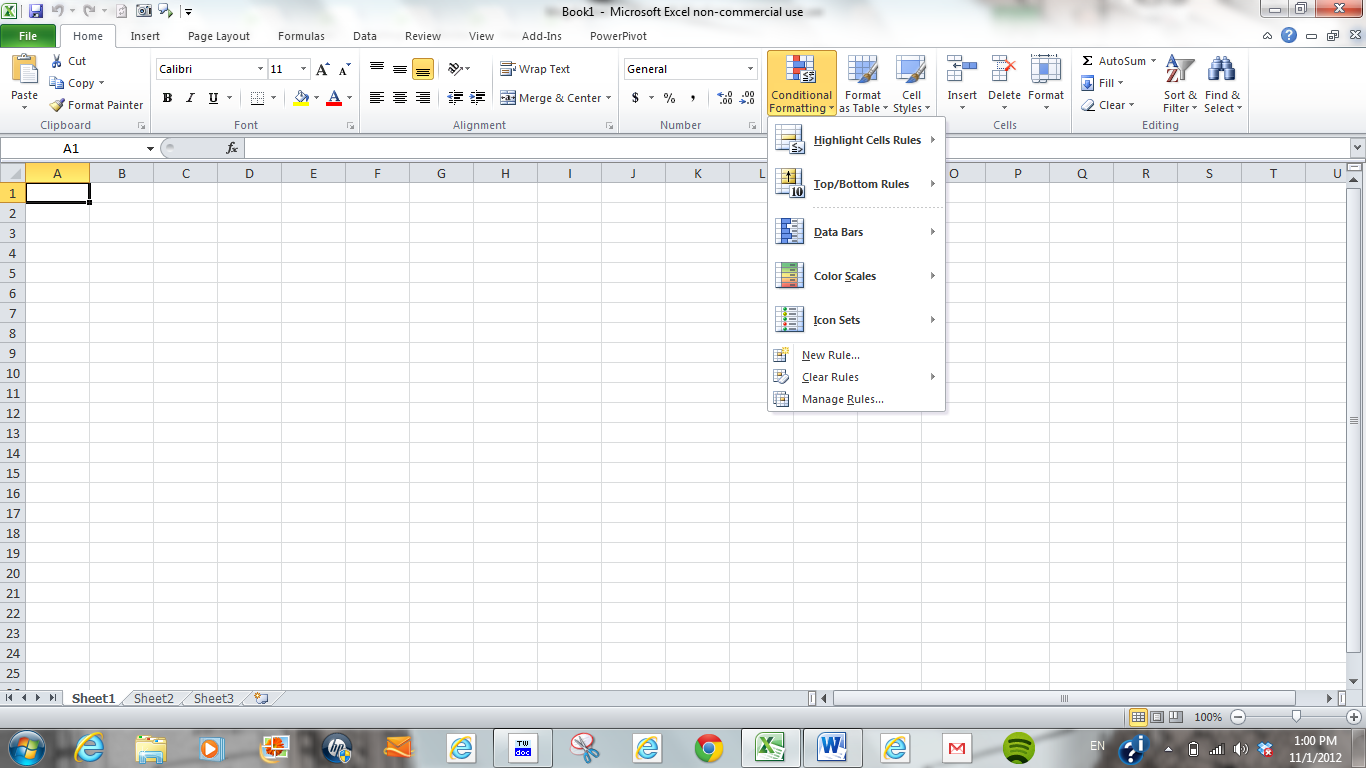
(though the options can get increasingly opaque as you descend that menu. Experimentation here can both enlighten and frustrate; don’t say I didn’t warn you. The experience can be Kafkaesque). But in any case, because we’re working with a pivot table the contingencies are slightly different, and so we need to click anywhere inside the pivot table data area (you need to click here, on not in the Row or Label areas) and click Home tab > Conditional Formatting in the Styles button group > New Rule:  You should see this:


While the above menu won’t make any user friends I wasn’t consulted about it, and we’ll have to make do with it as is. And in fact, to give credit where’s it’s due, Excel has rightly noted its pivot table surroundings by asking us, in the menu’s upper third, exactly which segment of the table we want to conditionally format, though its three answers need explaining.

Selected cells, the default and least likely option, will conditionally format only those cell(s) on which you’ve happened to click in order to trigger the menu to begin with. The All cells showing “Count of Offense” values selection will consider every data cell in the pivot table, including those addressed in any Total rows or columns, should these be turned on. You’ll almost surely pass on this option too, because Totals data will by definition be freighted with the largest numbers, and as such will decisively skew the conditional format coloring. We’re thus left with option 3, All cells showing “Count of OFFENSE” values for “LAT” and “LONG” – a curious-sounding locution, because it simply enumerates all of the fields currently in force in the table, and doesn’t appear to tell you anything you don’t already know. But because it’s possible, for example, that the Row Labels area could receive two fields at the same time – in which a superordinate field would be breaking out a subordinate one (e.g., Ward breaking out LAT) – this third option would then require you to start the conditional format by clicking on a cell positioned at the intersection of two of the three fields installed in the labels areas – either Ward and LONG, or LAT and LONG. But all right; if that anodyne digression has left you reaching for your brew, not to worry. That eventuality isn’t happening here.

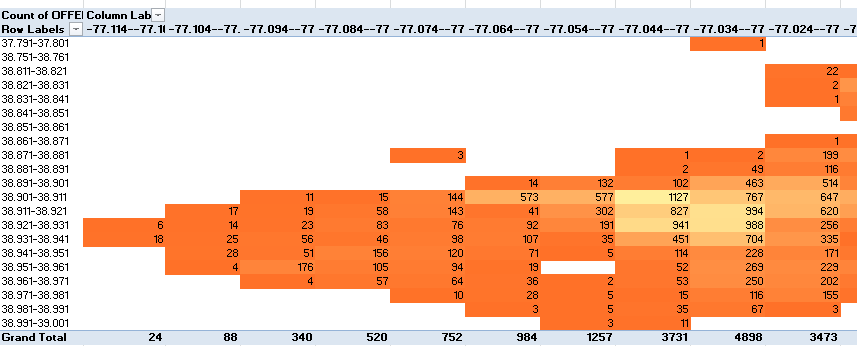
In any event, we’re going to adopt the most programmatic conditional format available to us on the menu – the one holding down its lower third, offering up that 2-color scale possibility. What we’re about to get is that continuum, the one that tints the pivot table data according to their respective size. All you need to do is select the colors you want – the ones that will anchor what Excel terms the data’s Lowest and Highest values. I’ll work with the defaults; and so after making sure I’ve clicked that third menu option I endorsed above, I’ll just go ahead and click OK. I see this, more or less:


Excel has brought some heat to the map, color-grading the data by their relation to their highest and lowest numbers dotting the pivot table. If you don’t like the gradation, return to the conditional format and pick two different colors (and you start the revision process by clicking Conditional Formatting > Manage Rules > Edit Rule, which you’ll find when the Conditional Formatting Rules Manager window opens). It’s mix and match – or, rather, mix and contrast.

That procedural part is easy, but it comes with a qualification. What I can’t identify yet are the intervals across the resulting color continuum at which one color gives way to the next. As we’ve indicated, our conditional format is bounded at the extremes by Highest and Lowest-number colors, but  the data in-betweens call up intermediate-value colors as well – and I just don’t know precisely where one such color elides into the next. I’ve consulted several Excel books on this little conundrum, and I’ve yet to turn up an answer. Even my books don’t discuss it.

Now how’s that for transparency?