Archive | June, 2013

NHS Hourly Data: Changing Times, Part 2

27 Jun

Allow me to refresh your memory. When we last eyed each other across our respective devices  I closed our tete-a-tete with a bit of a pivot table cliffhanger, although I can’t say I’ve seen any of you inching towards the edge of your seat in melodramatic thrall. But cheap production values notwithstanding, the problem was this: our attempt to group the NHS hourly data into tranches of three hours met with what appears to be a you-can’t-there-from-here rut in the road: the apparent fact that Excel’s grouping resource won’t extend its functionality to time-formatted values , e.g:
nh1


(In fact units of time can be grouped, however, after a limited fashion. For example, these times – 8:17, 8:31, and 8:54 – will submit to a manner of grouping, all massing beneath the 8:00 rubric. But grouping times across discrete hourly readings – for example, collecting 9:17, 10:12, and 11:32 into a 9:00-12:00 bin – appears to be a non-starter, though I am happy to be corrected should I be missing something.)  What to do, then?

Here’s a tack that seems to tread the path of least resistance. Insert a column to the immediate right of the Hour of arrival column in A, call it say, Hour, suit it up in Number format, and enter in what is now B4:

=A4*24

That elementary operation multiplies the time value in A4 – in this case, 0 – by the 24 that casts the hour numbers onto firmer ground. But a zero result doesn’t really capture the point, and so copying the formula down B and considering the workings of B5 – which yields 1.00 – should serve to explain more definitively.

Remember that hour data are expressed as fractions of a 24-hour day. Thus the actual numeric persona of the 1:00:00 AM in A5 is .0417, or 1/24th of 1 – a whole day.  09:00:00 AM, by way of continued example, is ultimately nothing but .375, or 3/8th of a day, and so on. Multiply .375 by 24 and you get…9, a solid numeric stand-in for that .375; but because the 9 is a standard number, it can be grouped as such.

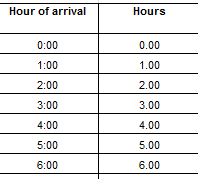
Thus copying our formula down B delivers a set of illusory but valuable numeric equivalents to time data, e.g.:
nh6


Note the B-columned data are decimal-pointed, although that formatting nicety won’t matter once the numbers are mashed into group mode – because you can’t format grouped data.

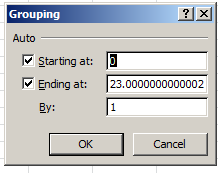
In any case, dust off a pivot table and drag Hours into the Row Labels area. Point and shoot at Group Selection, and say hello to the By option:
nh2


Enter 3 therein and you get:

nh3


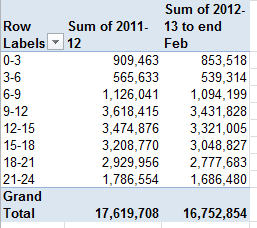
Houston, we have a grouping. Now you can swing some yearly patient data into the Values area, e.g. along with some presentable formatting:
nh4


(You don’t need decimals here; we’re dealing with actual patient aggregates, not averages.)

And if you’re feeling adventurous, you could append another new column to the right of the 2012-13 data (via a column insertion; don’t occupy the existing blank column, because it separates the absolute patient data from the percent data on their right, and you don’t want to join the two), call it Projected 2012-13, and enter in I4:

=H4*(12/11)

Because the 2012-13 numbers convey eleven months’ worth of data, the above formula projects another month atop the patent totals as they stand.  That’s a straight, linear per-month projection, one which might not wholly comport with a finer 12-month extrapolation, but it’s a stab in the right direction.

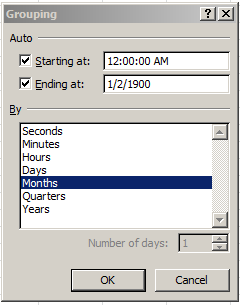
Now about the puzzlement at which I hinted last week, portrayed here:

nh1

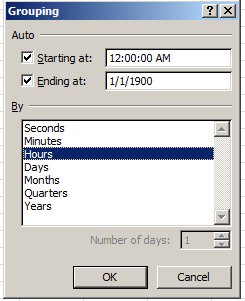
I’m wondering about that 1/1/1900 default glimmering in the Ending at: grouping field – even as the Hours option has been ticked. 1/1/1900 isn’t an hour, of course, but it is the very first date fronting Excel’s date sequence, and it has the value of…1. And the Starting at: entry of 12:00:00 AM is translated into standard numeric language as…1. As intimated earlier, time-formatted data tops out numerically at 1, the limiting case-value that recapitulates a day’s entire span (bear in mind that the number 0 also stands for 12:00 AM, as it bookends the other side of a single day, if that doesn’t pose a puzzlement in its own right). Given all that, I’m thus conjecturing that the 1/1/1900 discrepancy simply substitutes for a second 12:00:00 AM, because had that latter rendering of the number 1 settled into the Ending at: field, you’d be viewing identical data twins in the two fields – and that might puzzle users all the more. As a result, I’m thinking that 1/1/1900 supplies a different data look for the sake of presentational, but not substantive difference.

But I’m happy to be corrected about this one, too.

NHS Hourly Data: Changing Times, Part 1

20 Jun

Given the indispensability of its remit, the UK’s National Health Service can’t help but make news, whether it wants to not. Nothing about the Service is low-profile – be it budgetary conundrums, misgivings about the fluctuating quality of its care, debates about reorganization, or charges of cover-ups – there’s always something there

And so it is with NHS data, made available here, and more specifically in a recent Guardian entry on the demographics of visitors to NHS Accident and Emergency (A&E) departments, coming to you in Excel form here:

0Episode Statistics for Admitted Patient Care, Outpatients and Accident and Emergency Data – April 2012 to February 2013

Let’s direct our collective scrutiny to the Figure 3 tab, an hourly breakout of A&E patient arrival times extended across six consecutive yearly tranches (you’ll want to ask why the respective column headers comprise hyphenated year references, e.g. 2011-12, and I’m not sure of the answer and the yearly endpoints they mark. Moreover, the attendant Guardian story adds that the 2012-13 data encompass but 11 months). You’ll note in addition a second set of supplementary columns, these computing the percent of all visits by hour, and thus read down the columns.

In any event, the spreadsheet appears to have done most of work for us, intelligibly lining up the visits with their hourly points in time and culminating in a set of annual totals (row 28) that demonstrate the spike in A&E visits across the report span (again, recall that the 2012-13 numbers record only 11 months’ worth of data). But we could add a measure of value to the data by grouping the hours into larger, aggregated bins – set, say, to three-hour intervals, and seeing how the totals play out there.

Our first, necessary tweak toward that end is to install a blank row above those total data in row 28, thus excommunicating the totals from the remainder of the data set. We’ve discussed this matter before; leaving the totals in place and batching them into a pivot table would have the effect of counting and/or adding the same numbers twice, and that’s very bad form (and I also don’t’ quite appreciate the need to have merged cells A29:F29 in order to store that Source: caption. Text can happily splurge across empty column unimpaired, but that’s a separate and ultimately minor matter.)

But there’s something else amiss with the data that begs our attention, and that must be set aright. Remember first of all that time (and date) data are really, once the makeup is peeled off, prettified numbers, and it turns out that some of the hours posted to the A column are nothing but text. If you’re skeptical, enter

=COUNT(A4:A27)

in the now-blank A28; you’ll get 16. COUNT, it will be recalled, counts only those cells bearing numbers – and we’re working with 24 hours, and thus pulling up eight numbers short. Click each cell in the A4:A27 range, and you’ll be told that some of them have been vested with the General, as opposed to the Time format, and while a General-formatted entry could be numeric, these Generals aren’t. Moreover, the very first hourly posting – 00:00, or midnight – is one of those text pretenders, and so any copy-down-the-column procedure can’t start there, because doing so will inflict a non-numeric format all the way down. So what I’d do is copy the contents of A5 – a bona fide time entry – and copy it to A4. That operation does two things: it delivers the authentic Time format to A4, along with an actual time value – 1:00 AM. You need both, because simply reformatting A4 won’t metamorphose 00:00 into a number. The 1:00 AM replaces our obdurate text at last, after which you can simply delete the 1: and dust off an actual, quantifiable 00:00 AM.

That remedy applied, we can select A4 and A5, grab the fill handle and copy down the column, braking at A27. Now all the hourly representations have been duly quantified, spaced one real hour apart. (Note: again, don’t think we’ve just bulged each adjacent hour by an increment of “one”. In fact the operative additive is here .041666, or 1/24 of a day. Thus 8:00 AM “really” possesses the numeric evaluation of .3333.)

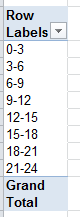
Now back to that grouping scheme. We’re aiming to consolidate the 24 hourly records into eight bins of three hours, and to tray these into the Row Labels area of a pivot table, e.g.

Hours
0:00-3:00
3:00-6:00
6:00-9:00

And so on.</p>
We’ve done this before. Stoke a pivot table, and drag Hour of Arrival into the aforesaid Row Labels:

hour1

Nothing you haven’t seen before. Click PivotTable Tools > Options > Group Selection, deselect Months, and click Hours:

hour2

You may not realize it yet, but now we have a problem (and I’m not hinting at the 1/1/1900 end date supplied by the grouping defaults above; let’s hold off on that one for now).
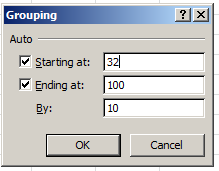
And here it is. If you group a set of numbers under standard-issue grouping auspices, you’re asked to name a grouping interval by which the numbers can be bundled, in the By field e.g.:

hour3

But no such capability avails in the Grouping dialog box, if it’s oriented to time data. True; times are numbers, but once they’re conceived in chronological terms the dialog box changes, along with its possibilities. There appears to be no prospect for imposing a grouping interval upon time data.
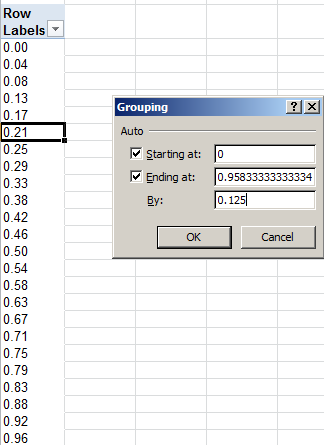
Of course you could reformat the above hours into their native numerical character and propose to group them:

hour4

But do so and you’ll merely group the numbers as you see them above, stemming any recourse to the hourly motif (the 0.125 in the By field, by the way, references the desired three-hour grouping interval. .125=one-eighth of a day).
And I know what you’re thinking: group the numbers as you see them above, and then reformat them into their hourly guises. Good idea, but it won’t work: once a grouping has been effected, the data reverts to text and is no longer subject to numerical adjustments. After all, a grouped entity such as

60-70

sports that nettling hyphen, which augurs text status – and that’s that. So what to do?
I’m working on it.

Notes on the Oxbridge Admissions Data: The Ins and Outs of Who’s In and Out

12 Jun

The recent Guardian map and report on the divergent fates of the Oxford and Cambridge university applications filed by young English and Welsh hopefuls calls for an analytical perspective – or two – before the picture it frames begins to cohere.

The report draws its plotline atop the fabled, notorious North-South divide that runs through so many intra-national comparisons of the UK’s welfare, the right side of the hyphen its privileged half, and London perhaps the more privileged still; and the Guardian makes much of the South’s (or the Southeast’s, to pinch the coordinates) imperial edge in seats claimed by its students at the two institutions. The data to that effect can be viewed here, in a riff on the Guardian’s source spreadsheet:

Cambridge and Oxford applications table

Note that in the finest tradition of digital journalism (assuming it has a tradition) I’ve insinuated a Region parameter into the mix, thus hold out one more data-grouping opportunity for the pivot tablers in your midst.

The Guardian piece calls our attention to the considerable, invidious admissions successes of London and near-London districts. i.e.:

“A single London borough – Barnet – alone had 130 offers of Oxbridge places from 408 applications last year. That equates to 46 applications and 15 offers for every 1,000 16 to 17-year-olds in the borough, according to the latest census figures. Meanwhile, Dudley in the West Midlands – with a similar-sized age cohort – had just 61 applicants and 13 offers, or seven applications and 1.58 offers per thousand.”

And so on, and it’s true; in absolute terms, the Southeast rules (ok , ok – I live in Barnet, but I’m an innocent bystander; I haven’t applied anywhere lately, went to school in the States besides, and don’t have a single A-level to my name). But here’s where you need to envision those perspectives. It’s when you look at the rates of application acceptance by district and region that the numbers begin to speak differently, albeit arguably.

For one thing, a simple descending sort of the Success rate-offers as % of applications field positions Surrey – the largest absolute contributor of incoming Oxbridgers – as merely the 44th most effective gatherer of university places.

In the interests of follow-through, try this pivot table:
Row Labels: Region
Values: Applications (Sum)
Offers (Sum)
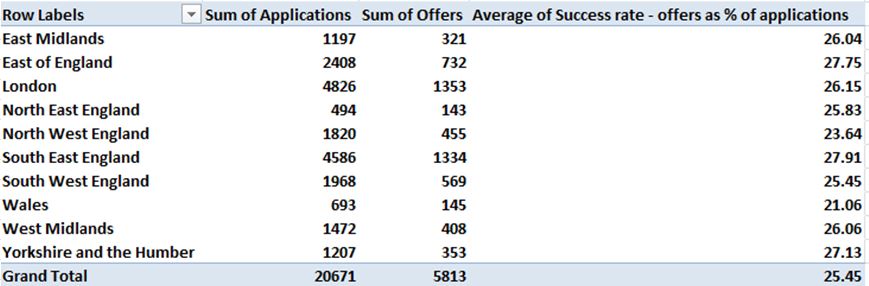
Success rate – offers as % of applications (Average, with appropriate formatting). I get

ox3

With the exception of Wales and perhaps North West England, whose rates lag perceptibly but haven’t contracted into outlier status, most regions enjoy a rough, remarkable success-rate equivalence, with no conspicuous edge devolving upon London, for example. On the other hand, of course, the absolute numbers read differently. London comprises about 14% of the jointly-totalled population of England and Wales (remember – England is a country in the United Kingdom, not the country itself), but contributes 23.35% of the Oxbridge applications, and 23.3% of the above acceptances, itself a notable near-equivalence. Does London’s advantage attest a recruitment bias, covert or concerted, or de facto – perpetrated by the two elite schools, or rather some complex, region-specific swirl of self-selection decisions bedeviling applicants?

A cynic would ask if Oxbridge is perfectly happy to admit applicants across the UK in like proportions, so long as the absolute numbers of entry-gainers skew toward the “right” kind of student, but that sounds like a conspiratorial reach, I’d allow. On the contrary – absent a wiretap of admission office phones, one could make a case for a determined equilibration of the rates (note: we’ve figured a simple average here, that is, an average of the acceptance averages which likewise characterizes that 25.45% Grand Total. An aggregate average, in which all region acceptances are divided by all region applicants, would necessitate a calculated field – but I’ve done that, and the results aren’t that different).

Note in addition that even the acceptance rates across London’s districts range hugely, from Camden’s 39.8% (76 out of 191 applications) to Havering’s 14% (8 out of 57). I would also call attention to the Guardian’s avowal that

“Three London local authorities – Richmond upon Thames, Kensington and Chelsea, and the City of London – sent more than 25 students to Oxbridge per 1,000 16 to 17-year-olds in 2012, compared with an average of just over 2.5 students per 1,000 for England and Wales as a whole.”

But after tossing out the above three districts, I still get a number closer to 3.6.

(Moreover, the Guardian finds that “Several local authorities sent less than one student per 1,000 young people, with Anglesey, Flintshire and Middlesbrough having the lowest acceptance rates.” My sort puts Middlesbrough at number 158 out of the 171 districts.)

In any case, we could also go on to correlate Applications per 1,000 16-17 year olds with Success rate, in the interests of learning if high-application districts enjoy an admissions edge:

=CORREL(F2:F172,H2:H172)

Result: .199

That association, according to the Statwing web site, is statistically significant but clearly not overwhelming, and leaves a great deal of the variance to be explained. Thus there does appear to be some admissions benefit redounding to application-intensive districts, even after controlling for population size – some, at least.
While we’re at it there’s also another puzzle you may want to run through your local admissions counselor. Head the I column Student Acceptances, enter in I2:

=E2/D2

and copy down the column, formatting accordingly. This modest fraction calculates the districts’ percentage of successful Oxbridge applicants who actually accepted their school’s offer, and the numbers range surprisingly widely. 38 of the 172 districts sport a candidate acceptance rate of 100%, but why 8 of the 22 designees from Manchester – 36.4% – decided against attending an Oxbridge institution remains to be explained, along with Durham’s 10 recalcitrants out of 34 (29.41%).

So where do the numbers leave us? The answer depends on your perspective. (See also the piece by Oxford admissions director Mike Nicholson.) There are those big Southeast Oxbridge admission numbers, countered by the comparable rates of acceptance across the UK. And with competing takes on the matter comes the ancient conundrum of point-of-intercession: is the grand vision of educational parity properly realized very early on in the timeline, in the form of equalized and or compensatory learning opportunities, or at the point-of-sale, so to speak – that time of year when universities alternately lift and shutter their gates to the mass of aspirants huddled on the other side. And given the cachet attaching to a ticket Oxford and Cambridge, the gatekeeping is fateful indeed.

On the other hand, might not a healthful iconoclasm be served by wondering if you have to go to Oxbridge, or even have to want to go there? After all, I didn’t, and don’t – and I live in Barnet.

Big Data, Big Numbers: Putting the Long in Longitudes

6 Jun

Face it: unless you’re an astrophysicist or a currency exchanger of epochal venality you’ve never had to add, subtract, or otherwise crunch a number that had to be cranked to 14 decimal points.

Until now. But it’s a data viz, map-happy, GIS-driven world out there, with latitude and longitude data dilating spreadsheet columns all across the net with DNA-sequence prolixity – and it’s your job to deal with them. Case in point:  the directory of New York’s sidewalk cafés compiled here, and dredged from the New York City Open Data site:

 sidewalk cafe

There’s over a thousand spots served up here for your dining, sipping and passing-scene-watching pleasure, named, addressed, zip coded, and square-foot calculated besides. And so before we get to those nasty coordinates you may want to put some of these other fields through their paces, e.g., this simple pivot table:

Row labels: Address Zip Code

Values: Address Zip Code (count)

Simple indeed, but in order to make sense of the results you need to learn a bit about New York three-digit zip code prefixes, which reference these boroughs:

100,101,102 – Manhattan

103 – Staten Island

104 – The Bronx

112 – Brooklyn

113,114,116 – Queens

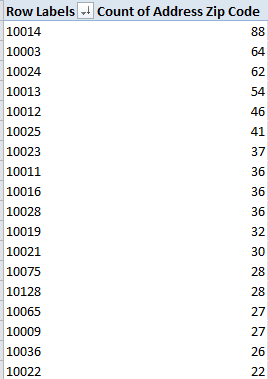
Sort the data by the Count of Address Zip Code field and you discover that the 18 café-richest codes all spread their awnings atop Manhattan streets:

side1

That best-in-show 10014 stands for the West Village neighborhood, a staging area for the putatively hip, followed at some remove by its opposite number of sorts, the 10003 of the East Village. It isn’t until you get to zip code 19 – 11103, signalling the heavily Greek district of Astoria, Queens – that you bump up against a non-Manhattan quarter, with its 18 cafés. In fact, 769 of the 1008 sidewalk establishments get their mail delivered somewhere on the island.

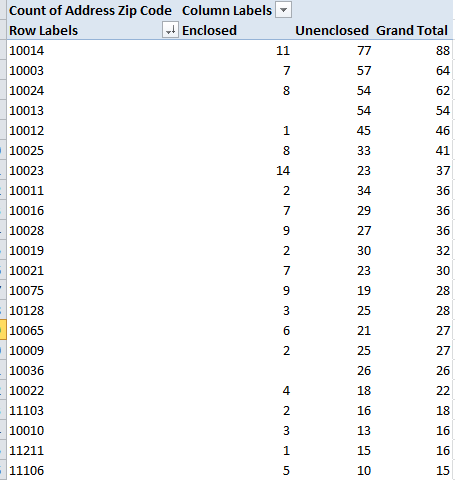
Now leave the table in place and drag Sidewalk Café Type to the Column Labels area. You should see (in excerpted form):

side2

And so on. It turns out that 147, or 14.6%, of all cafés meet the Enclosed standard, officially set forth as a café “contained within a one-story structure constructed predominantly of light materials such as glass, slow-burning plastic, or lightweight metal.” In other words, if you want to catch some rays you’ll have to seat yourself somewhere among the other 85.6%.

But you want to know about those lats and longs, the better to dot your latest mapping viz. The problem is that these coordinates are beaded to those larger text expressions peopling the Location 1 field., eg.:

2 35 STREET
NEW YORK, NY 10001
(40.74910326346623, -73.98413829733063)

(The expressions are curiously formatted, perhaps having been culled from a word-processed file that lined up its text with manual line breaks.)

As a result, we need to spring the lats and longs from each such entry and plant them into cells all their own. This sort of assignment is typically entrusted to the Text to Columns feature (my January 17, post, for example), but that alternative won’t work here, in part because Text to Columns plumbs the data for a fixed set of identifiable column separators; and as we’ll see, that possibility eludes us here. But yes, there is a plan B.

To start, we’ll enter the headers Lat and Long respectively in M1 and N1. And in M2, we’ll write:

=MID(L2,FIND(“(“,L2)+1,7)

 I see the board lighting up with requests for clarification, so here goes.

In fact, I introduced MID in the September 25 post, although context is everything and a second look is surely in order. MID, in contradistinction to LEFT and RIGHT, extracts a specified number of characters from the interior of a cell, and works as per this syntax:

=MID(text ,start number, number of characters)

(Where “text” can be either an actual expression or a cell reference.) Our problem is in identifying the start number of the latitudes entrapped in the expressions in the L column. What we can know is that each latitude proceeds from the immediate right of the open parenthesis (or bracket, if you’re reading this in the UK). The problem, of course, is that the parentheses debut at different locations in each entry – and that’s where FIND comes in.

Unlike MID, which captures and returns an actual textual result, FIND turns up the position of the first instance of a specified text. Thus this formulation:

=FIND(“h”,”sunshine”)

returns 5, the sequence position of the letter h. That means that our FIND nested into the larger MID expression – thus casting itself into the role of MID’s start number argument – seeks the positional appearance of the character “(” plus 1, because we’re seeking the latitude number abutting that parenthesis at its right, and not the parenthesis itself. We’re assuming of course (rightly, I think) that each and every entry in the L column in fact has an open parenthesis, and that constant empowers the formula we want to ultimately copy down the M, or Lat, column.

As for the 7, that value tells the formula how many characters to strip from the original L-column-based expression. The first three of those would be something like 40., the rounded-off latitude degree peculiar to these New York cafés, and the remaining 4 characters report the first four decimal points of the lat, e.g. 40.7491.

But once your formula is composed, you may decide that your mapping program isn’t wholly satisfied by a four-decimal latitude coordinate. That value may ground each location too finely, particularly if you’re mapping through a pivot table (October 25 and November 1 posts); and if that be the case you can brace the expressions with the ROUND enhancement, e.g.

=ROUND(MID(L2,FIND(“(“,L2)+1,7),2)

That would get you 40.75, for example.

And as for the longitudes, we need to pinpoint the appearance of the minus sign, which, unlike the parenthesis above, is integral to the longitude value (because longitudes west of the Greenwich UK, zero-degree launch point are assigned negative numbers), and as such requires us to cast off the +1 visiting our latitude expressions. Thus we’d enter in N2:

=ROUND(MID(L2,FIND(“-“,L2),7),2)

Assuming you’re content with that two-decimal point round-off.  Then copy down the column.

But if you want to play with varying decimal round-offs, you could designate a cell, eg. P1, enter the 2 there, and emend your formula:

 =ROUND(MID(L2,FIND(“-“,L2),10),$P$1)

That rewrite would free you to enter any substitute value in P1, say, 1 or 3 or whatever, and realize assorted precisions, e.g., 40.7, or 40.749.

But It’s coffee break time, my treat. Let’s meet at a café somewhere in 10014, your choice. You have 88 options.